
When we dub your video, we replace the voices and mix the new recordings with the music, sound effects and atmosphere. Separate background audio helps us keep those sounds without the original speech.
In the files creators have sent HVO, we have seen AAFs alongside MP4s, WAV stems and MP3 files. You do not need to make all three: send whichever option you have.
1. Most flexible: an AAF from your final edit
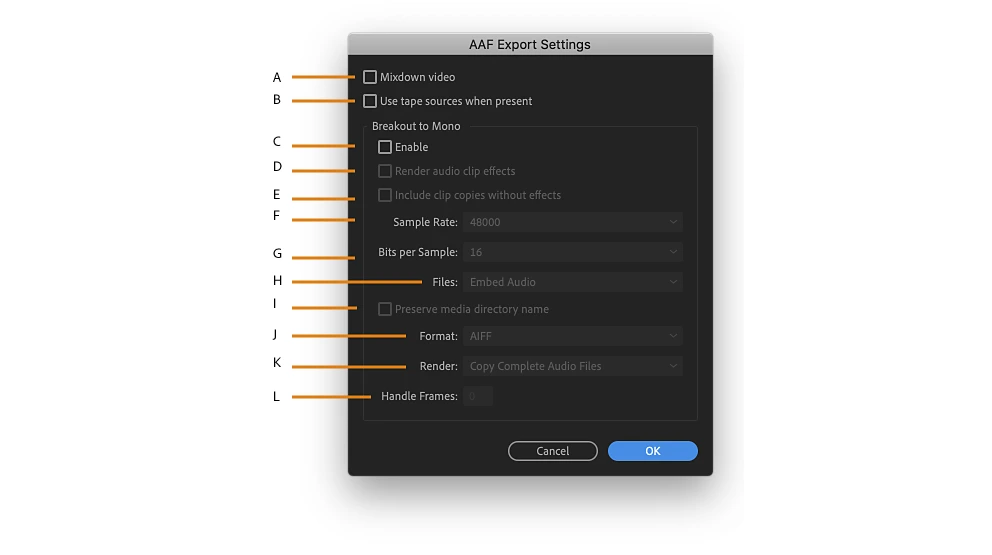
An AAF carries your audio edit so a sound engineer can work with separate tracks and clips. Keep dialogue, music and sound effects on their own named tracks, and export from the same final cut as the video.
- Premiere Pro: choose File → Export → AAF. Include the audio: embed it, or send the separate audio files created by the export with the AAF.
- DaVinci Resolve: for an audio handoff, use the Pro Tools preset on the Deliver page. Send the AAF it creates and any linked audio. Blackmagic specifically warns against using the generic Export AAF/XML command for a Pro Tools handoff.
- Final Cut Pro: AAF needs an extra tool, such as X2Pro, which converts Final Cut Pro XML. You do not need to buy a tool for this: use a no-dialogue mix or the role-based stems in option 3 instead.
Do not send just an AAF that points to audio on your computer. Keep any exported media folders together. Effects do not always transfer between apps; if you already have a background mix or stems, include them too.
Export references: Adobe AAF guide, DaVinci Resolve 21 manual, “Pro Tools,” page 4192, and X2Pro.
2. Easiest: one file with no original voices
Mute the dialogue and voice-over tracks, then export the music, sound effects and background sound together. This is a no-dialogue mix, often called M&E: music and effects.
WAV or AIFF is best. If you already have an MP3, send it. An MP4 with the no-dialogue audio also works; the important part is that its soundtrack has no original voices.
Export the full video length from the same starting point as the video. Keep any silence at the beginning or end. Do not trim the file to where the music starts.
CapCut desktop: once the original voices are muted, open Export → Export Audio and choose WAV if available. Muting a clip also mutes any background sound baked into that clip; check that you have not lost effects you want to keep. CapCut's export guide.
3. Also works: separate stems
Stems are separate audio files for groups of sounds. Send music and sound effects separately, plus dialogue if you have it. Export every file over the same full timeline range, including silence, so they line up.
Use clear names, for example:
Video-title_Music.wavVideo-title_SFX.wavVideo-title_Dialogue.wav— optional, kept separate from the background
Final Cut Pro: assign the correct Dialogue, Music and Effects roles. Choose File → Share → Export File, set Format: Audio Only in Settings, then open Roles and choose Audio Only as Separate Files under Roles as. Export the whole project, not a shortened range. See Apple's role-export instructions.
How to send the files
One folder for the video, AAF and audio is fine. Use Box, Google Drive or Dropbox, enable link access and downloads, then test the link in a signed-out browser.
Paste it into Music & SFX when you submit your video in the creator portal, even if it is the same folder link as the video. That field is optional. To add it later, open the video in the portal, edit the submission and save the link there.
Use a link that will not expire, and keep the files available while we work. Avoid short-lived transfer links. Have another file type or an export you are unsure about? Send what you have and we will check it.
Quick questions
Can I submit a video without music and effects files?
Yes. The video is enough to submit. Separate background audio is optional; do not hold up the submission because you do not have it.
Is an MP4 the same as an M&E?
No. MP4 is a file format; M&E describes what you hear. An MP4 can carry a no-dialogue mix, but your ordinary video with everyone talking is not an M&E.
What if speech and music are already mixed together?
Muting that mixed track removes both. If you cannot export the background separately, submit the video anyway rather than sending an empty “no-dialogue” file.
For the wider process, read how human YouTube dubbing works or our YouTube dubbing workflow guide.
Last checked on November 10, 2026. Export instructions were checked against the linked vendors' documentation and the submission steps against HVO's deployed creator portal.